Wiederverwendung von Bildern und Diagrammen
Set your photos, charts, and graphs free. Solid Converter PDF version 3 releases both vector and bitmap images from PDF files. Then you can reuse them in Excel and other programs. Here’s how.
Extracting Images
Step 1
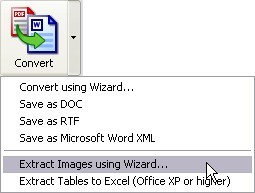
Select Files and Conversion Method Open Solid Converter PDF and select one or more source files from the File Open box (you can hold down the CTRL key to select multiple files). Click the down arrow next to the Convert icon and select the Extract Images Using Wizard option. A wizard will walk you through the process.
Step 2
Select Format and Output Path Select your desired Image Format (Same as original, BMP, JPG, PNG, or TIF). Next, click Browse to choose the folder where you want the files to be saved. (If you do not choose a path, the new files will be saved in a subfolder under the original.) Click Next to continue answering the questions in the wizard. When the wizard is finished, copies of the images will be saved in your format of choice, each with a different file name. You can then use the images in Word or Excel by using the Insert Picture option.
Importing Vector Graphics into Excel
Vector graphics are a special type of images that use geometric information to represent objects. Vector graphics can generally be rotated, moved, mirrored, stretched, or skewed in ways that a raster graphic (such as a .jpg or .gif) cannot. You can extract a vector graphic from a PDF and bring it into Excel in the following way:
Step 1
Convert PDF to Word Convert your PDF file to a Word document with Solid Converter PDF. If you need help in doing this, click the Documentation link for assistance. Step 2
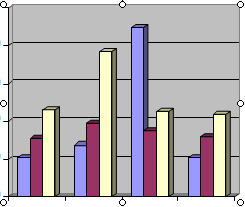
Copy Vector Image from Word In your Microsoft® Word document, click the image to select it. Press CTRL+C or use the Word Copy command to copy the image to the clipboard.
Step 3
Paste Image in Excel In Microsoft® Excel®, click the location where you want the image to appear, then paste it using CTRL+V or the Excel Paste command. You can then change certain features of the graphic (such as colors) using Excel's tools for that purpose.
|