PDF-naar-Word-converter
Deutsch English Español Français Italiano Magyar 
Norsk Português (Br) Русский 


Home
Technische ondersteuning
Partners
Neem contact met ons op
Bedrijf
Kopen
 

 Producten

Solid Converter® PDF
Kenmerken
Aankoop
Downloaden
Technische ondersteuning
Documentatie
Solid PDF Tools
Solid PDF Creator Plus
Solid PDF Creator
Solid Converter® DWG
Solid Capture
Solid Converter® GX
Solid Framework
 
PDF-naar-Word-converter Klanten
 
Ontvang onze nieuwsbrief
 
Blog en RSS Feed
Solid Documents-blog
 Geef u op voor deze blog
 

Tips & trucs

Creating a New PDF File (v3)

Step 1
Open the file in the original program

First, open the file you want to make into a PDF in its native program. For example, if you want to create a PDF file from a Microsoft Word document, open the file in Word.

Step 2
Start the PDF creation process

From Microsoft Word, Excel*, or PowerPoint*, click the Create PDF button -or-

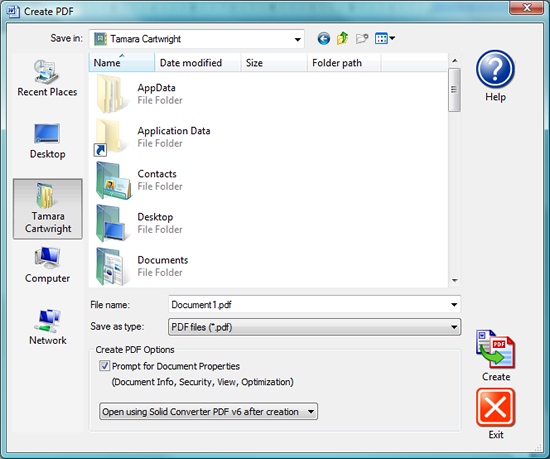
From other Windows programs, select File|Print, then select Solid Converter PDF as your printer. The Create PDF dialog opens.
Step 3
Choose File Options

In the File Options area at the bottom of the screen, select your file options. The options you select will be activated after clicking the Create button. You can select from among the following.

  • Prompt for password and security settings. Selecting this option will open the Password dialog, so you can assign a password to open or edit the new PDF.
  • Prompt for document information. Selecting this option will open the Document Information dialog so you can enter Title, Subject, Author, and Keywords.
  • Open Converted File. Selecting this option will open the PDF file after conversion.

Step 4
Assign File Name and Create PDF

Make sure the file name is correct, then click the Create button to create your new PDF file.

*This feature is in the Professional version only.


Return to Tips and Tricks


Sitemap
©2000-2009 Solid Documents, LLC - Alle rechten voorbehouden