-
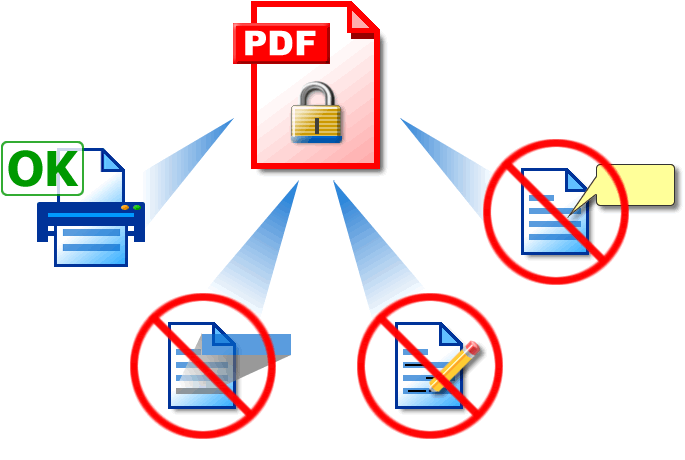
Password Protection. With Solid PDF/A Express you can restrict who can view, edit, copy, print or add comments to your document.
-
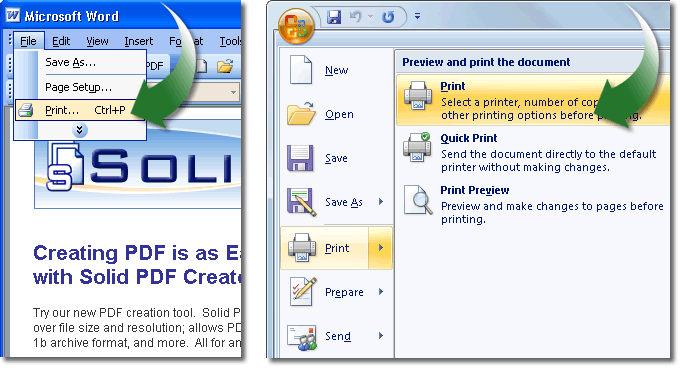
Open PDF . Open the document you wish to secure as a PDF and select File | Print...
-
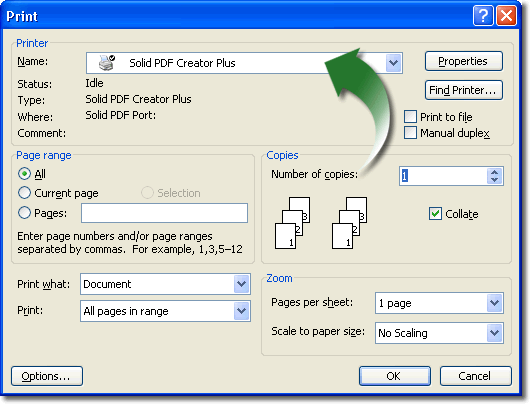
Select Printer Driver. In the Print menu that appears select the Solid PDF/A Express printer driver and click OK...
-
Set Document Properties. In the window that appears, name your PDF document, ensure that Prompt for Document Properties is checked and click Create...
-
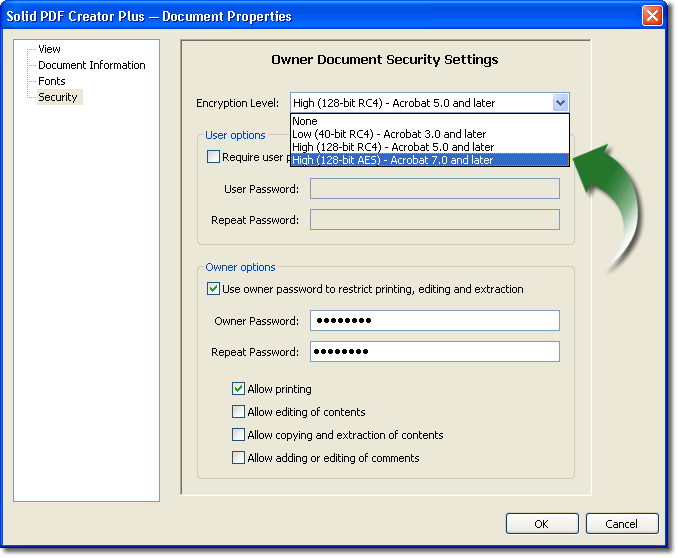
Encrypt Your PDF. Using Solid PDF/A Express select the encryption level for your PDF document, select the actions you want to allow without a password, enter your password and click OK. This allows you to optimize your documents for either security or backwards compatibility with older versions of Adobe Reader...
-
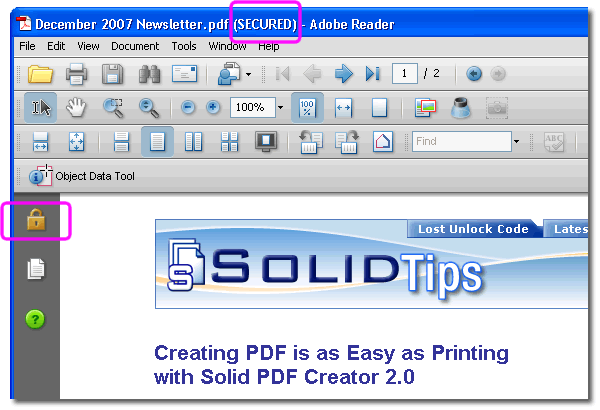
Your Secure Document. When you open your PDF document in Adobe Reader you’ll see that it is "SECURED". Users will be unable to use the features that you have restricted.
-
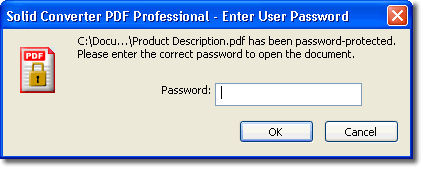
Prompt For Password. Any manipulation of the document that is not already allowed, such as converting the PDF to Word with Solid Converter® PDF, will prompt the user to enter the password in order to continue.
|