Извлечение таблиц из документов PDF в Excel
Note: This feature requires Office XP or above.
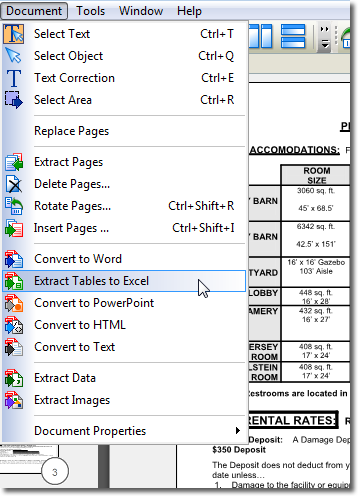
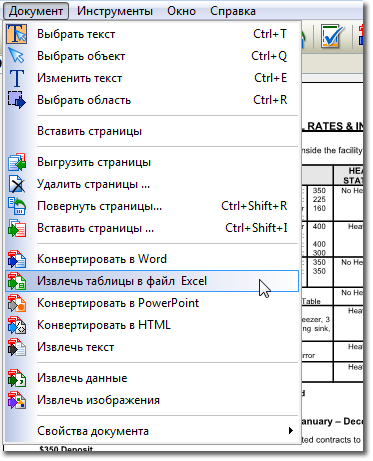
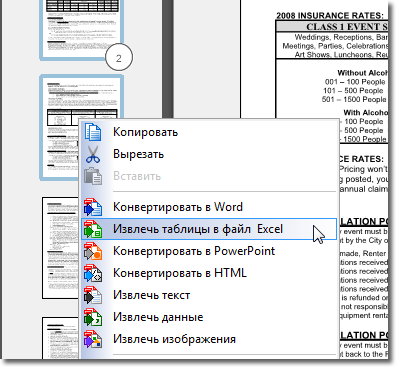
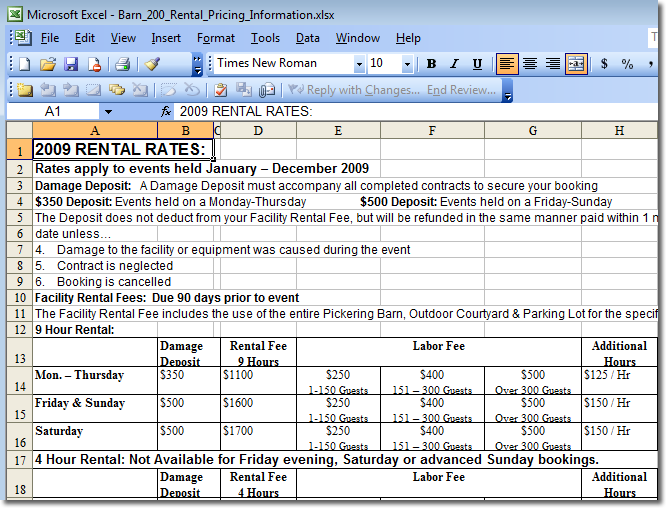
Tables can be extracted from a PDF file with Solid Converter PDF v3 and saved in Microsoft® Excel format. The program automatically saves each table in the PDF content as a separate worksheet within a single workbook. You can then make changes to the data and formatting as with any other Excel file.
Note: Solid Converter PDF does not import formulas - you will need to enter those by hand. The program simply preserves the table formatting from the original PDF document.
Step 1 Open Solid Converter PDF
Open Solid Converter PDF using one of the following methods:
- Desktop.Double-click on the Solid Converter PDF icon.

- Windows Start menu. From your Microsoft Windows Start Programs menu, select Solid Documents|Solid Converter PDF|Solid Converter PDF.
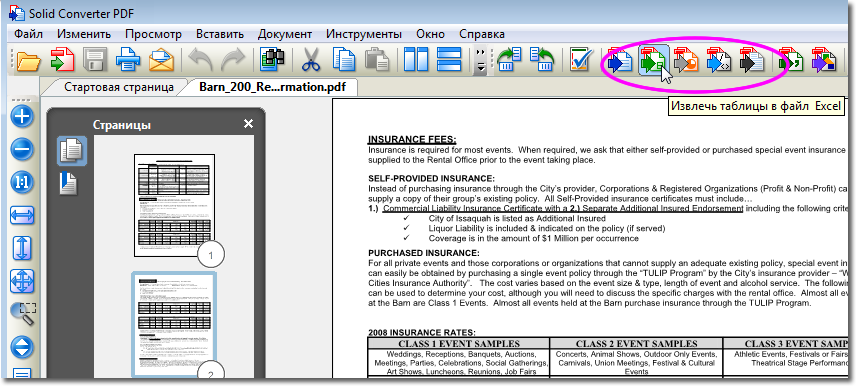
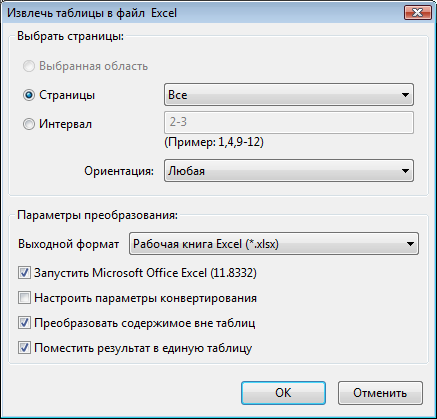
Step 2 Select Files In the Solid Converter PDF window, browse to the folder containing the PDF file(s) you want to extract tables from. Select one or more source files (you can hold down the CTRL key to select multiple files), then click the down arrow next to the Convert icon and select Extract Tables to Microsoft Excel.

Step 3 Convert Files
File conversion will begin automatically and a progress window will display. If the file is password protected, the conversion will stop and request the password before proceeding. After conversion, you can open the new spreadsheet in Excel and make changes. The file will be saved in the same folder and have the same name as the original PDF, except with a "xls" instead of a "pdf" file extension. 
|