Erweiterte Tabellenbearbeitung in Word
Solid Converter PDF features great table handling capabilities. Tables are imported and formatted as Word table objects, making them easy to edit and preventing retyping of data. You can use Word’s table manipulation tools to make changes and save the results as a Word file, PDF file, or both. To import tables into Word, when you convert your PDF file, make sure you select Detect Tables. When your new Word document is opened, your tables will appear as Word table objects*. You can perform any of the actions you can do with tables in Word, including:
- Tabbing between cells
- Changing data
- Changing borders and shading
- Adding or removing columns or rows
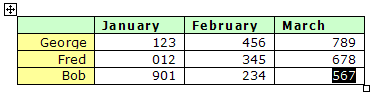
*Note: In rare instances, where a table is highly complex with irregular elements, Solid Converter PDF may not be able to recognize a table. In that case, the table will be converted with text boxes rather than as a table object.
|